
Workspaces Plugin

Parallel development environments with integrated AI agents. Create isolated workspaces, launch Claude Code or Cursor, stream real-time output, and merge when ready—all from one terminal interface.
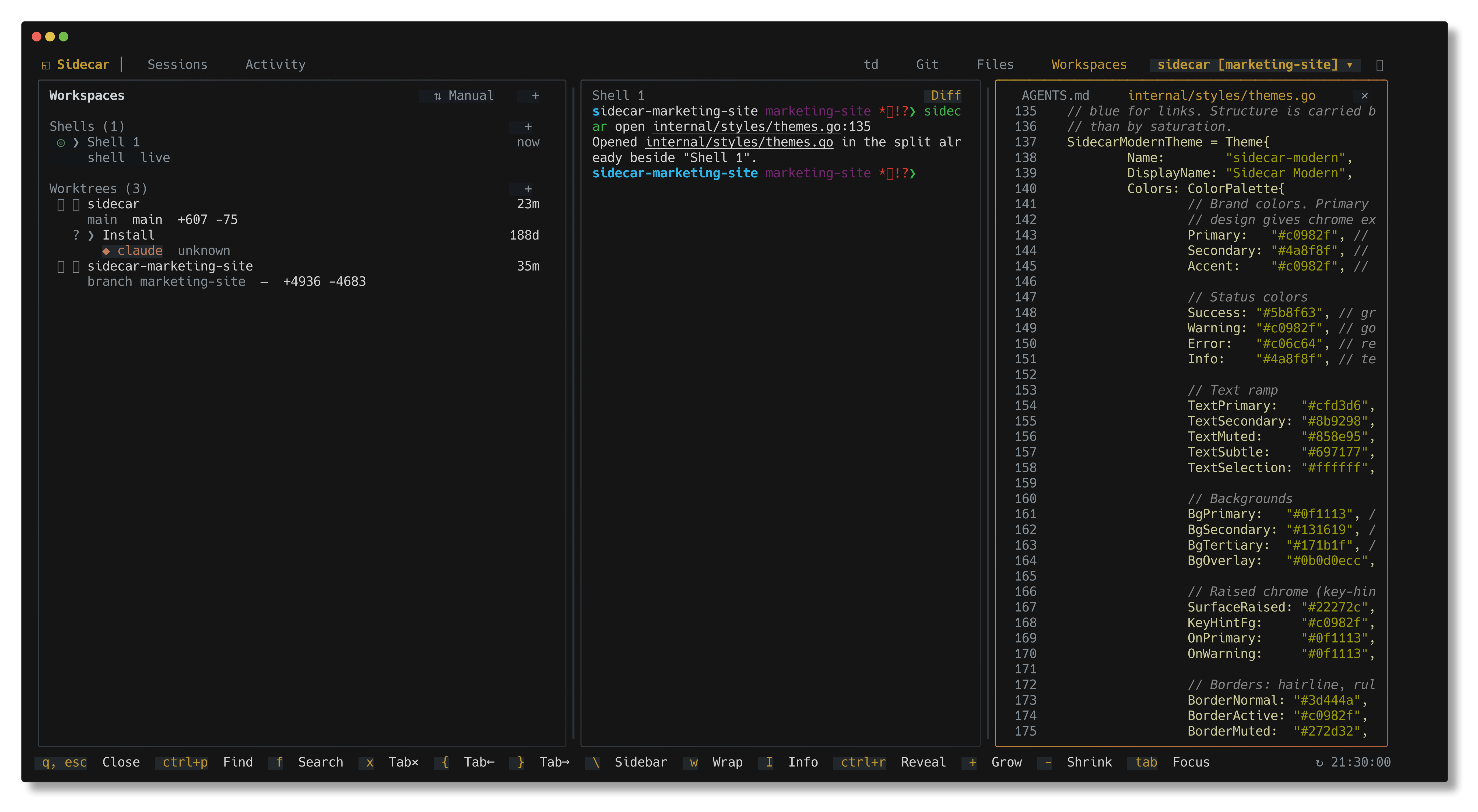
Workspaces Plugin

What is this?

The Workspaces plugin turns git worktrees into managed development environments. Each workspace gets its own directory, branch, and optional AI agent (Claude Code, Codex, Gemini, Cursor, or OpenCode). You work on multiple features in parallel, watch agent output in real-time, review diffs, and merge via PR—all without leaving sidecar.

Key capabilities:

  • Create workspaces with one command: branch + task + agent + prompt
  • Launch AI agents into isolated environments with reusable prompt templates
  • Stream real-time output from Claude Code, Cursor, or any supported agent
  • Monitor multiple agents via Kanban board or list view with live status
  • Review & merge with built-in diff viewer and GitHub PR workflow
  • Automatic cleanup of local/remote branches after merge

This workflow eliminates context-switching between branches and enables true parallel development.

The Problem

Without workspaces:

  • Switch branches to start new work, losing current context
  • Stash/commit WIP changes to avoid conflicts
  • One agent at a time, waiting for completion
  • Manual tmux session management
  • Scattered terminal tabs for different tasks

With sidecar workspaces:

  • Instant parallel development: 5 agents on 5 branches simultaneously
  • Zero context loss: each workspace is isolated, never conflicts
  • Unified dashboard: see all agents, all output, all diffs in one place
  • Automatic session management: reconnects to agents after restart
  • Integrated PR workflow: diff → push → PR → cleanup in 4 keystrokes

Real use case: You're working on a feature when a critical bug report arrives. Press n, create a "hotfix-login" workspace from main, launch Claude Code with the "Bug Fix" prompt, and let it work while you continue your feature. Both agents run in parallel. When Claude finishes, review the hotfix diff, merge it via PR, and return to your feature—without ever switching branches or losing state.

Prerequisites

Required:

  • Git 2.25+ (for worktree support)
  • Tmux 3.0+ (for agent session management)

Optional (for specific features):

  • gh CLI (for GitHub PR creation in merge workflow)
  • claude CLI (for Claude Code agent)
  • cursor-agent CLI (for Cursor agent)
  • codex CLI (for Codex agent)
  • gemini CLI (for Gemini agent)
  • opencode CLI (for OpenCode agent)
  • td CLI (for task linking)

Install agents as needed. The plugin gracefully handles missing CLIs—only installed agents appear in the picker.

Quick Start

Press n to create your first workspace. Select a base branch, choose an agent (Claude Code, Cursor, etc.), and optionally pick a reusable prompt. The agent starts immediately in an isolated tmux session. Press enter to attach and interact, or watch output stream live in the preview pane.

When done, press m to review the diff, create a GitHub PR, and clean up branches—all in one flow.

Configuration

Workspace behavior is configured via JSON files:

Global config: ~/.config/sidecar/config.json Project config: .sidecar/config.json (overrides global)

Example config:

{
"plugins": {
"workspace": {
"dirPrefix": true,
"setupScript": ".sidecar/setup-workspace.sh"
}
},
"prompts": [
{
"name": "Bug Fix",
"ticketMode": "required",
"body": "Fix issue {{ticket}}. Run tests before marking complete."
},
{
"name": "Feature",
"ticketMode": "optional",
"body": "Implement {{ticket}}. Follow existing patterns. Write tests."
}
]
}

Config options:

OptionTypeDescription
dirPrefixboolPrefix workspace dir with repo name (e.g., myrepo-feature-auth)
setupScriptstringPath to script run after workspace creation (for env setup, symlinks, etc.)

The setup script runs in the new workspace directory with $SIDECAR_WORKTREE_NAME and $SIDECAR_BASE_BRANCH environment variables.

Overview

The Workspaces plugin provides a two-pane layout:

  • Left pane: Workspace list (or Kanban columns)
  • Right pane: Preview tabs (Output, Diff, Task)
  • Draggable divider: Resize panes to your preference

Toggle views with v for list or Kanban board.

View Modes

List View (Default)

Vertical list of all workspaces with rich status information:

StatusMeaningVisual Indicator
ActiveAgent running, processing tasksGreen dot
WaitingAgent paused for approvalYellow dot
DoneWork completed successfullyBlue checkmark
PausedAgent stopped or no agentGray dot
ErrorAgent crashed or failedRed X

Each row shows:

  • Workspace name and branch
  • Agent type (Claude Code, Cursor, etc.), or branch name for the root workspace
  • Task ID (if linked to TD)
  • Creation time (relative, e.g., "2h ago")
  • Status indicator

Kanban View

Press v to switch to Kanban board with columns organized by status:

ColumnDescription
ActiveAgents currently processing (green)
WaitingAgents blocked on approval (yellow)
DoneCompleted work ready to merge (blue)
PausedStopped or idle workspaces (gray)

Each column shows:

  • Workspace count at the top
  • Cards with name, agent type, and task
  • Visual color coding for quick status assessment

Navigate columns with h/l (vim keys) or arrow keys. Press v to toggle back to list view.

When to use Kanban:

  • Managing 5+ parallel workspaces
  • Visual overview of agent pipeline
  • Quick status triage across many tasks

When to use List:

  • Detailed view of individual workspaces
  • Faster keyboard navigation
  • More information density

Workspace Navigation

KeyAction
j, Move down
k, Move up
gJump to first
GJump to last
h, Previous column (Kanban)
l, Next column (Kanban) or focus preview
vToggle list/Kanban view

Preview Tabs

Three tabs in the preview pane provide different views of workspace state:

KeyAction
[Previous tab
]Next tab

Output Tab

Real-time streaming of agent terminal output. Shows exactly what the agent sees—including prompts, tool calls, file edits, and command outputs.

Features:

  • Captures tmux pane content every 500ms (adaptive: slower when idle, faster when active)
  • Auto-scroll follows new output (pauses on manual scroll, resumes with G)
  • ANSI color support for syntax highlighting
  • Unicode-safe truncation (no broken multibyte chars)
  • Handles high-velocity output without memory leaks
KeyAction
j, Scroll down (pauses auto-scroll)
k, Scroll up
ctrl+dPage down
ctrl+uPage up
gJump to top
GJump to bottom (resumes auto-scroll)

What you'll see:

  • Agent initialization and model selection
  • Tool calls and file operations
  • Approval prompts (if not skipped)
  • Error messages and stack traces
  • Completion messages

Diff Tab

Full git diff for the workspace branch compared to base branch. Shows all changes the agent made.

Features:

  • Unified diff (traditional +/- format)
  • Side-by-side diff (split-screen before/after)
  • Syntax highlighting for code changes
  • Horizontal scroll for wide diffs
  • Merge conflict detection and highlighting
KeyAction
vToggle unified/side-by-side view
h, Scroll left (wide diffs)
l, Scroll right
0Reset horizontal scroll

Diff mode preference persists across sessions.

Task Tab

Displays linked TD task with full context. Shows task title, description, acceptance criteria, and metadata.

Features:

  • Markdown rendering (headings, lists, code blocks, emphasis)
  • Raw text mode (toggle off for plain view)
  • Scrollable content for long task descriptions
  • Automatic task link detection from .sidecar-task file
KeyAction
mToggle markdown rendering
j, Scroll down
k, Scroll up

Empty if no task is linked. Press t in the sidebar to link a task.

Agent Integration

The workspaces plugin runs AI coding agents in isolated tmux sessions and streams their output in real-time. Each workspace can have one active agent. Sessions persist across plugin restarts—sidecar automatically reconnects to running agents.

Supported Agents

AgentCommandDescription
Claude CodeclaudeAnthropic's official CLI with browser control
CodexcodexAlternative Claude-based coding agent
GeminigeminiGoogle's Gemini CLI
Cursor Agentcursor-agentCursor's autonomous coding agent
OpenCodeopencodeOpenRouter-based coding assistant

Starting Agents

KeyAction
sStart agent (opens agent picker)

If no agent is running, opens a modal to select:

  • Claude Code
  • Codex
  • Gemini
  • Cursor Agent
  • OpenCode
  • None (just open terminal)

Attaching to Agents

KeyAction
tAttach to running agent
enterEnter interactive mode

Press t to open the agent's tmux session for direct interaction. Press ctrl+b then d to detach back to sidecar. Press enter to enter interactive mode, which allows typing directly into the terminal while staying in sidecar.

Real-Time Output Streaming

Agent output streams live in the Output tab. The plugin captures tmux pane content every 500ms (or slower when idle). Auto-scroll follows new output—manual scrolling pauses it, press G to resume.

Status detection:

  • Active: Agent running, cursor visible in output
  • Waiting: Agent paused for approval (detected via prompts)
  • Done: Agent completed successfully
  • Paused: Agent stopped or session ended
  • Error: Agent crashed or failed

Agent Controls

KeyAction
SStop agent (kills tmux session)
yApprove pending action
YApprove all pending prompts
NReject pending action

Approval keys work with agents in "Waiting" status. The plugin detects common approval prompts from Claude Code, Codex, and Cursor.

Skip Permissions Mode

When creating a workspace, enable "Skip perms" to auto-approve agent actions. Each agent has a corresponding flag:

AgentFlag
Claude Code--dangerously-skip-permissions
Codex--dangerously-bypass-approvals-and-sandbox
Gemini--yolo
Cursor-f

Warning: Skip permissions mode grants agents unrestricted file access. Only use for trusted prompts in sandboxed environments.

Shell Management

Shells are standalone tmux sessions created for direct terminal access without an AI agent. They appear in the sidebar alongside workspaces for easy switching.

Creating Shells

Press n and select "Shell" from the type selector modal, or press A in the sidebar to quickly create a new shell. Each shell is created with an auto-numbered display name (e.g., "Shell 1", "Shell 2") and a stable tmux session name for state persistence.

Renaming Shells

Press R to rename a shell with a custom display name:

  1. Modal appears: Shows current name and tmux session ID
  2. Type new name: Input field accepts up to 50 characters
  3. Validation: Name must be unique and non-empty
  4. Confirm: Press Enter to save, Esc to cancel

Custom names persist across sidecar restarts. The underlying tmux session name (e.g., sidecar-sh-project-1) remains stable for reliable state restoration.

Example:

  • Default name: "Shell 1"
  • Rename to: "Backend"
  • Rename to: "Testing"
  • Custom names appear in the sidebar for easy identification

Deleting Shells

Press D to delete a shell session. This terminates the underlying tmux session and removes it from the sidebar.

Shell Capabilities

OperationKeyDescription
Create shelln + select ShellCreate new terminal session
Rename shellRChange display name (50 char limit)
Delete shellDTerminate tmux session
Interactive modeenterEnter interactive mode for typing
Attach to shelltFull-screen tmux access
Kill shellKForce-terminate session

Workspace Operations

Creating Workspaces

Press n to open the create modal:

FieldDescription
NameWorkspace branch name (e.g., feature-auth)
Base branchBranch to create from (defaults to HEAD / current branch)
PromptReusable prompt template with variables (optional)
TaskLink to TD task for context (optional)
AgentAI agent to launch (Claude Code, Cursor, etc.)
Skip permsAuto-approve agent actions (dangerous, see warning above)

What happens on creation:

  1. Git creates a workspace in a sibling directory (e.g., ../feature-auth)
  2. A new branch is created from the base branch
  3. If a task is linked, a .sidecar-task file is created and td start runs
  4. If an agent is selected, it launches in a tmux session named sidecar-ws-<name>
  5. If a prompt is selected, it's passed as the initial instruction to the agent
  6. The workspace appears in the list with "Active" status (if agent running)

Reusable Prompts

Prompts are templates stored in JSON config files. They support variables like {{ticket}} for dynamic substitution.

Config locations:

  • Global: ~/.config/sidecar/config.json
  • Project: .sidecar/config.json (project-specific, overrides global)

Example config:

{
"prompts": [
{
"name": "Bug Fix",
"ticketMode": "required",
"body": "Fix issue {{ticket}}. Run all tests before marking complete."
},
{
"name": "Feature Development",
"ticketMode": "optional",
"body": "Implement {{ticket}}. Follow existing patterns in the codebase. Write tests for new functionality."
},
{
"name": "Refactor",
"ticketMode": "none",
"body": "Refactor the selected code to improve readability and maintainability. Do not change behavior. Run tests to verify."
}
]
}

Prompt variables:

  • {{ticket}}: Replaced with task ID (if ticketMode is "required" or "optional")
  • {{taskTitle}}: Replaced with task title from TD
  • {{taskBody}}: Replaced with task description from TD

Ticket modes:

  • required: Must link a task, variable is replaced
  • optional: Can link a task, variable is replaced if present
  • none: No task linking, no variable substitution

Modal navigation:

KeyAction
tabNext field
shift+tabPrevious field
j, Navigate dropdowns
k, Navigate dropdowns
enterSelect or confirm
escCancel

Deleting Workspaces

KeyAction
DDelete workspace

Opens confirmation with options:

  • Delete local branch
  • Delete remote branch
KeyAction
j, Navigate options
spaceToggle checkbox
enterConfirm
DQuick delete (power user)
escCancel

Fetching Remote PRs

Press F to fetch a pull request created remotely (e.g., via Claude Code on your phone) and create a local workspace from it.

KeyAction
FOpen PR fetch modal

The modal lists open PRs from GitHub (via gh pr list). Filter by typing, select a PR, and press Enter. Sidecar fetches the branch and creates a worktree tracking it, with the PR URL pre-linked. Start an agent with s to continue the work locally.

Requirements: gh CLI installed and authenticated.

Push & Remote

KeyAction
pPush branch to remote

Task Linking

Link workspaces to TD tasks for context:

KeyAction
TLink/unlink TD task

Opens task picker to select from open tasks.

Complete Workflow Example

Here's a typical workspace lifecycle from creation to merge:

1. Create a workspace for a new feature:

Press n, enter name "feature-auth", select base branch "main", pick prompt "Feature Development", link task "td-abc123", choose agent "Claude Code", enable "Skip perms" for autonomy. Press Enter.

2. Agent works autonomously:

Claude Code starts immediately with your prompt. Watch live output in the Output tab. Status updates to "Active" → "Waiting" (if approval needed) → "Done" when complete.

3. Review the diff:

Switch to Diff tab to see all changes. Press v to toggle side-by-side view. Scroll horizontally with h/l for wide diffs.

4. Merge via PR:

Press m to start the merge workflow:

  • Step 1: Review final diff
  • Step 2: Choose merge method (merge commit / squash / rebase)
  • Step 3: Create GitHub PR (via gh pr create)
  • Step 4: Choose cleanup options (delete local branch, delete remote branch)

5. Cleanup:

After PR is merged (manually or via GitHub), run step 4 again to delete the workspace directory and branches.

Merge Workflow

Press m to start a multi-step merge:

  1. Diff review: See all changes to be merged
  2. Method selection: Choose merge strategy (merge commit, squash, rebase)
  3. PR creation: Creates GitHub PR via gh CLI (requires gh installed)
  4. Cleanup options: Delete local branch, remote branch, and workspace directory
KeyAction
j, Navigate options
enterProceed to next step
spaceToggle checkboxes
tabCycle focus
sSkip step (if already pushed)
esc, qCancel merge

Prerequisites:

  • gh CLI installed and authenticated (gh auth login)
  • Remote tracking branch configured (push first with p if needed)

Pane Navigation

KeyAction
tabSwitch to next pane
shift+tabSwitch to previous pane
l, Focus preview pane
h, Focus sidebar
enterFocus preview (from list)
escReturn to sidebar
\Toggle sidebar visibility

Mouse Support

  • Click workspace: Select
  • Click tab: Switch preview tab
  • Click button: Execute action
  • Drag divider: Resize panes
  • Scroll: Navigate lists and content

Session Persistence & Reconnection

The plugin remembers state across restarts and automatically reconnects to running agents.

What persists:

StateStorage Location
View mode (list/Kanban)User config
Sidebar widthUser config
Diff view modeUser config
Active tabUser config
Agent type.sidecar-agent in workspace dir
Task link.sidecar-task in workspace dir
PR URL.sidecar-pr in workspace dir

Automatic reconnection:

When sidecar starts, it:

  1. Lists all workspaces via git workspace list
  2. Checks for existing tmux sessions named sidecar-ws-*
  3. Reconnects to active sessions and resumes output streaming
  4. Detects agent status (Active, Waiting, Done) by analyzing recent output
  5. Restores agent type from .sidecar-agent file

Claude Code integration:

For Claude Code specifically, the plugin also:

  • Detects running Claude sessions by matching worktree paths to ~/.claude/projects/*
  • Reads session JSONL to determine if agent is active or waiting
  • Shows Claude status even if tmux session is unavailable (direct attachment not possible without tmux)

This means you can close sidecar, continue working with Claude Code directly, then reopen sidecar and see live status updates.

Tips & Best Practices

Naming conventions:

  • Use descriptive branch names: feature-auth, bugfix-login, refactor-api
  • Keep names short (under 30 chars) for better display in lists
  • Use kebab-case for consistency with git conventions

Agent usage:

  • Start with "Skip perms" disabled for safety—enable only after testing prompts
  • Use reusable prompts for common patterns (bug fixes, features, refactors)
  • Link tasks to workspaces for context—agents can see task descriptions via {{taskBody}}
  • Monitor "Waiting" status agents regularly—they need approval to continue

Parallel workflows:

  • Create workspaces from different base branches (main, develop, etc.)
  • Use Kanban view when managing 5+ workspaces for visual overview
  • Review "Done" workspaces daily and merge promptly to avoid conflicts

Performance:

  • Limit active workspaces to 10-15 for best performance (tmux polling overhead)
  • Stop agents when not needed—"Paused" workspaces have minimal overhead
  • Delete merged workspaces to keep the list manageable

Integration:

  • Configure setup scripts for automatic dependency installation (npm, pip, etc.)
  • Use dirPrefix when working across multiple repos to avoid directory conflicts
  • Link workspaces to TD tasks for automatic time tracking and status sync

Troubleshooting

Agent won't start:

  • Verify CLI is installed: which claude (or codex, cursor-agent, etc.)
  • Check tmux is running: tmux ls
  • Look for existing session: tmux ls | grep sidecar-ws-
  • Kill stale session: tmux kill-session -t sidecar-ws-<name>

Output not streaming:

  • Ensure workspace is selected in sidebar (output only streams for selected workspace)
  • Check tmux session is alive: tmux ls | grep sidecar-ws-<name>
  • Try pressing r to refresh workspace list
  • Restart sidecar to trigger reconnection

Merge fails:

  • Install gh CLI: brew install gh or gh auth login
  • Push branch first: press p before merge workflow
  • Check GitHub permissions: gh auth status
  • Merge conflicts: resolve manually in workspace directory, then retry

Workspace won't delete:

  • Stop agent first with S
  • Check for uncommitted changes: switch to workspace and commit or stash
  • Force remove: git worktree remove --force <path>
  • Manual cleanup: rm -rf <worktree-path> then git worktree prune

Status stuck on "Active":

  • Agent may be idle waiting for input—check Output tab
  • Try sending approval with y if agent is waiting
  • Attach with enter and check terminal directly
  • Restart agent: S to stop, s to start

Performance issues:

  • Reduce active workspaces (stop agents on paused workspaces)
  • Increase poll intervals in config (advanced, requires code change)
  • Close unused workspaces with D
  • Clear tmux scrollback: tmux clear-history -t sidecar-ws-<name>

Command Reference

All keyboard shortcuts by context:

KeyAction
j, Move down
k, Move up
gJump to top
GJump to bottom
h, Previous column (Kanban)
l, Next column / focus preview
vToggle view mode
nCreate workspace
FFetch remote PR as workspace
DDelete workspace / Delete shell
pPush branch
dShow diff
mMerge workflow
TLink task
RRename shell (display name only)
sStart agent
SStop agent
yApprove action
YApprove all
NReject action
enterInteractive mode
tAttach to agent
[Previous tab
]Next tab
tabFocus preview
\Toggle sidebar

Preview Context (workspace-preview)

KeyAction
j, Scroll down
k, Scroll up
ctrl+dPage down
ctrl+uPage up
gJump to top
GJump to bottom
vToggle diff view (diff tab)
h, Scroll left / focus sidebar
l, Scroll right
0Reset scroll
mToggle markdown (task tab)
sStart agent
SStop agent
yApprove action
YApprove all
NReject action
[Previous tab
]Next tab
tabFocus sidebar
escFocus sidebar
\Toggle sidebar

Create Modal (workspace-create)

KeyAction
tabNext field
shift+tabPrevious field
j, Navigate dropdown
k, Navigate dropdown
enterSelect / confirm
escCancel

Merge Modal (workspace-merge)

KeyAction
j, Navigate options
k, Navigate options
enterProceed
spaceToggle checkbox
tabCycle focus
sSkip step
esc, qCancel

Delete Modal (workspace-delete)

KeyAction
j, Navigate options
k, Navigate options
spaceToggle checkbox
enterConfirm
DQuick delete
esc, qCancel

Summary

The Workspaces plugin is sidecar's most powerful feature for parallel AI-assisted development. It combines git worktrees, tmux session management, real-time output streaming, and GitHub PR workflows into a unified interface.

Start using it:

  1. Press n to create a workspace
  2. Choose Claude Code or Cursor as your agent
  3. Watch output stream live in the Output tab
  4. Press m when done to merge via PR
  5. Repeat for multiple parallel branches

Advanced features:

  • Reusable prompt templates with task variables
  • Kanban board for 5+ simultaneous workspaces
  • Automatic reconnection to running agents
  • Skip permissions mode for autonomous agents
  • TD task integration for time tracking

The workspaces plugin enables a new development workflow: let AI agents work in parallel on isolated branches while you orchestrate from a single dashboard. No more context-switching, no more manual tmux management, no more scattered terminal tabs.