Files Plugin
A full-featured terminal file browser with syntax-highlighted previews, ripgrep project search, rendered Markdown with live content links, drag-and-drop file moving, and inline editing—all without leaving your terminal.
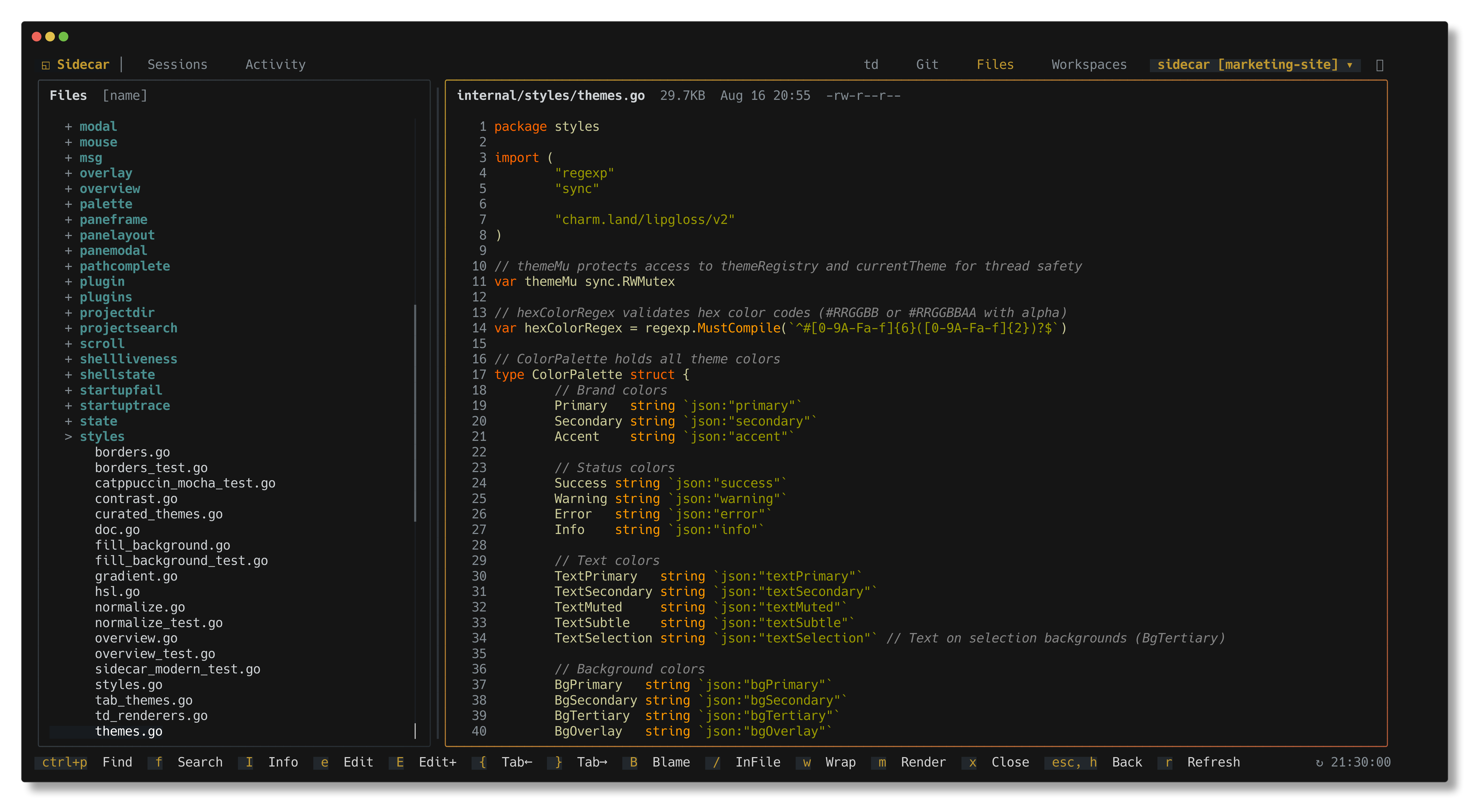
Key Capabilities
- Instant Fuzzy Finder (
ctrl+p): Caches up to 50,000 files for instantaneous file navigation across large codebases. - Project Search (
f): Full-text ripgrep search with regex support, case matching, and multi-file previews. - Rich Content Previews: Language-aware syntax highlighting across 100+ languages, rendered Markdown with live links, and terminal graphics protocol support for image previews.
- Inline Text Editing (
e): Edit files directly inside the preview pane using a lightweight tmux PTY editor backend. - In-File Search (
/): Incremental search within the active file preview withn/Nmatch navigation and wrapped highlights. - Drag-to-Move: Drag files or directories to reorganize folders, with spring-loaded folder opening on hover.
- Full File Management: Create (
a/A), rename (r), move (m), delete (D), copy (y/c), and paste (p) with safety confirmations. - Interactive Scrollbars: Grab and drag scrollbars on both the directory tree and file preview panes.
Quick Start
| Key | Action |
|---|---|
ctrl+p | Open fuzzy file finder |
f | Search project contents with ripgrep |
/ | Filter tree files (tree pane) or search inside file (preview pane) |
e | Edit previewed file inline |
E | Open file in external $EDITOR |
m | Toggle between raw text and rendered Markdown |
\ | Toggle directory tree pane visibility |
Core Concepts & Layout
The Files plugin provides a two-pane interface:
- Tree Pane (Left): Navigate project directory hierarchy, perform file creation, renaming, moving, and deletion.
- Preview Pane (Right): View file contents with syntax highlighting, search matches, and inline editing.
- Draggable Divider: Adjust pane widths with the mouse or keyboard (
+/-).
┌──────────────────────────────┬──────────────────────────────────────────┐
│ Tree                         │ Preview: internal/app/commands.go        │
│                              │                                          │
│ ▾ internal/                  │ package app                              │
│   ▾ app/                     │                                          │
│     • app.go                 │ // FocusPlugin switches the active view. │
│     • commands.go            │ func FocusPlugin(id string) tea.Cmd {    │
│     • options.go             │     return func() tea.Msg {              │
│   ▾ plugins/                 │         return FocusPluginByIDMsg{       │
│     ▸ filebrowser/           │             PluginID: id,                │
│     ▸ gitstatus/             │         }                                │
│     ▸ notes/                 │     }                                    │
│                              │ }                                        │
└──────────────────────────────┴──────────────────────────────────────────┘
Navigation & Search
Tree Navigation (Left Pane)
| Key | Action |
|---|---|
j, ↓ | Move down the file tree |
k, ↑ | Move up the file tree |
g / G | Jump to top / bottom of tree |
ctrl+d / ctrl+u | Page down / Page up |
l, →, enter | Expand folder or focus file preview |
h, ← | Collapse folder or jump to parent directory |
Search Modes
The plugin includes four distinct search modes for different tasks:
1. Fuzzy File Finder (ctrl+p)
Find files by partial name match across your entire repository. Type any part of the path (e.g. plugnote matches internal/plugins/notes/plugin.go).
2. Project Search (f)
Search file contents across your entire codebase using ripgrep. Supports regex queries, case sensitivity toggles, and live result previews.
3. Tree Filter (/ in Tree Pane)
Filter visible items in the current directory tree view by filename.
4. In-File Search (/ in Preview Pane)
Perform incremental searches within the previewed file. Use n to jump to the next match and N to jump to the previous match.
File Preview & Inline Editing
Rich Content Previews
- Syntax Highlighting: Language-aware Chroma highlighting synchronized with your active Sidecar color theme.
- Rendered Markdown (
m): Styled headings, lists, blockquotes, and tables. All internal links (path:line,td-*, git commits, URLs) are active and clickable. - Image Previews: Native terminal graphics protocol rendering (Kitty, iTerm2) for PNG, JPG, GIF, and SVG assets.
- Live File Watching: Previews reload automatically whenever background agents or external tools modify files on disk.
Inline Editing (e)
Press e (or double-click) in the preview pane to edit the file directly in the terminal without opening an external editor:
- Powered by a lightweight tmux PTY backend with responsive cursor positioning.
- Make quick edits, adjust configuration values, or fix syntax errors directly in place.
- If you navigate away or click outside while unsaved edits are present, Sidecar prompts you with a Save / Discard / Cancel dialog.
External Editor (E)
Press E to suspend Sidecar and open the file in your configured $EDITOR (e.g. Neovim, Helix, VS Code). When the editor closes, Sidecar instantly reloads the updated file.
File Management Operations
All mutating file operations feature validation and confirmation dialogs to prevent accidental data loss:
| Key | Action | Description |
|---|---|---|
a | New File | Create a new file (supports nested paths like src/auth/jwt.go) |
A | New Directory | Create a new folder |
r | Rename | Rename file or directory |
m | Move | Move file/folder with auto-complete path suggestions |
y | Yank (Copy) | Mark file or folder for copying |
p | Paste | Paste yanked item into the selected folder |
D | Delete | Delete file or directory (with confirmation modal) |
I | File Info | Inspect permissions, size, modification date, and git status |
c | Copy Path | Copy relative path to system clipboard |
Mouse & Drag Operations
- Click to Preview: Select files and expand/collapse directories with a single click.
- Drag-to-Move: Press on any tree row and drag to move the item.
- Drop on a folder to move into that folder.
- Drop on a file to place alongside it in that file's parent directory.
- Hover over a collapsed folder for 500ms to spring it open automatically.
- Drag to top or bottom edges to auto-scroll off-screen directories.
- Drag Divider: Resize tree and preview panes smoothly.
- Scroll Wheel: Scroll smoothly through file trees, search results, and code previews.