
Git Plugin

A terminal-native git UI with real-time diff preview, syntax highlighting, and intelligent auto-refresh. Watch your agent's changes as they happen—no context switching required.
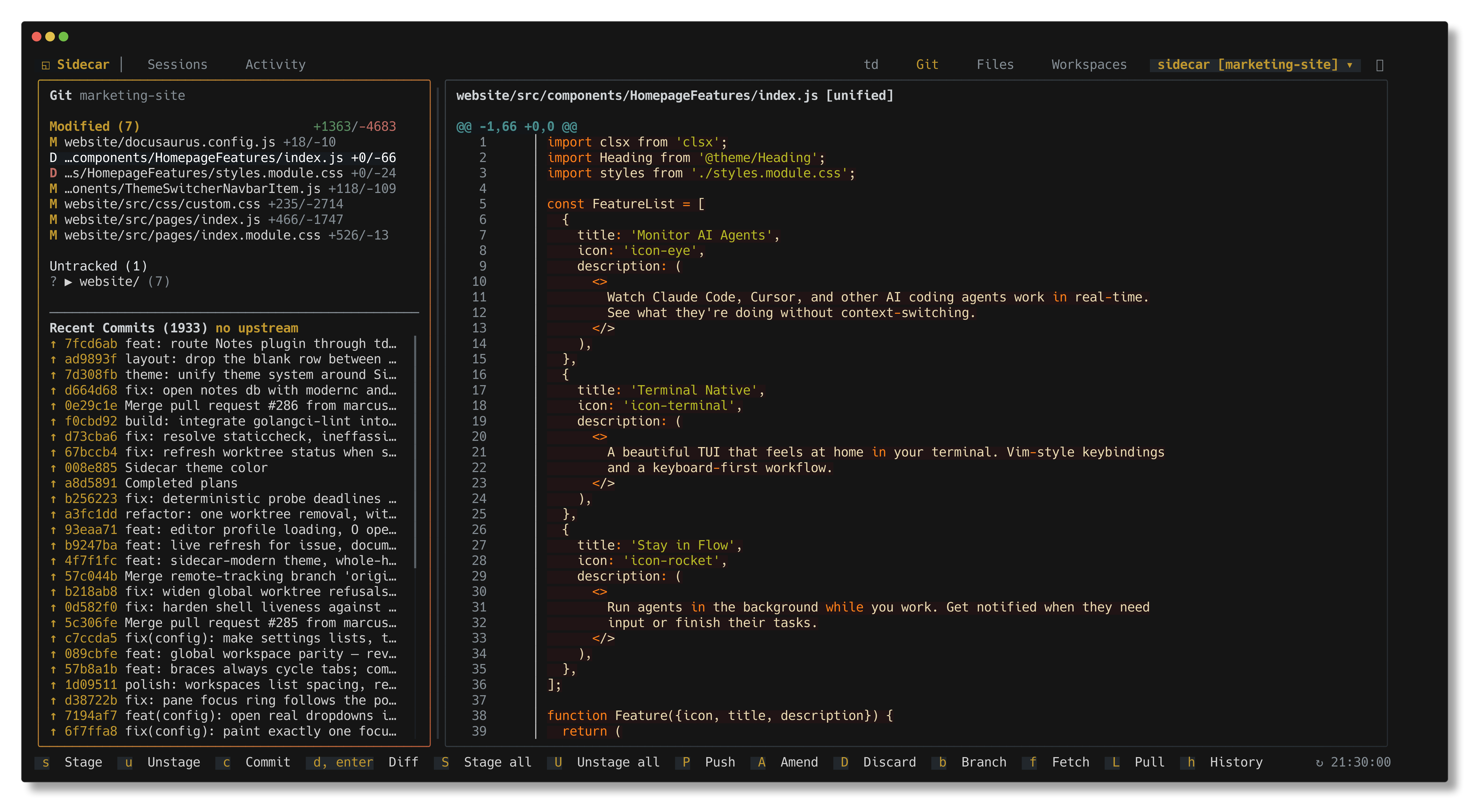
Git Status

The Context-Switching Problem

Traditional git workflows force you to context-switch: git statusgit diffgit add → repeat. When working with AI agents, you lose visibility into what's changing in real time.

This plugin solves that with:

  • Live preview: Split-pane interface shows diffs as you navigate files
  • Syntax-highlighted diffs: Language-aware coloring for readable code review
  • Real-time updates: Auto-refreshes when your agent commits or files change
  • Zero-config: Works instantly in any git repository
  • Full-featured: Stage, commit, branch, push, stash, search—everything in one view

Quick Start

  1. Open any git repository in sidecar
  2. Press 1 or click the git icon to activate
  3. Navigate files with j/k, stage with s, commit with c

That's it. The diff pane updates automatically as you move.

Core Concepts

Two-Pane Layout

┌─────────────────┬──────────────────────────┐
│ Files & Commits │ Diff Preview │
│ │ │
│ • Staged (2) │ + added line │
│ • Modified (5) │ - removed line │
│ • Untracked (3) │ unchanged line │
│ │ │
│ Recent Commits │ (syntax highlighted) │
│ • abc123 Fix │ │
└─────────────────┴──────────────────────────┘
  • Left: Organized file tree + scrollable commit history
  • Right: Live diff preview or commit details

Auto-Refresh Intelligence

The plugin watches .git directory and debounces updates (500ms) to prevent excessive refreshing. Updates trigger on:

  • File modifications (your agent editing code)
  • Git operations (commits, branch switches, merges)
  • Remote operations (fetch, pull, push completion)

You always see current state without manual refresh.

Built for AI-Assisted Development

Most developers use one of these git workflows:

  1. CLI only: Run git status, git diff file.go, git add, repeat. Slow and breaks flow.
  2. VSCode/IDE: Built-in git but separate from terminal, no agent visibility.
  3. Separate GUI: Tools like GitKraken or Tower—heavy, disconnected from terminal work.

This plugin is designed for AI-assisted development:

  • Agent visibility: See every change your agent makes in real time
  • Terminal-native: No switching windows, stays in your tmux/terminal workflow
  • Keyboard-first: Every action has a shortcut, mouse is optional
  • Fast: Instant diff preview, no loading spinners or heavy UI
  • Smart defaults: Stage next file, auto-cursor movement, debounced refresh

Think of it as "git status + diff + add + commit" fused into a single, live-updating view.

File Status

Files are organized into sections with status indicators:

SymbolStatusMeaning
MModifiedFile changed
AAddedNew file (staged)
DDeletedFile removed
RRenamedFile renamed
?UntrackedNew file not tracked
UUnmergedMerge conflict

Each file shows +/- line counts for quick impact assessment.

Staging & Unstaging

KeyAction
sStage selected file or folder
uUnstage selected file
SStage all files
DDiscard changes (with confirmation)

Stage entire folders by selecting the folder and pressing s. After staging, the cursor automatically moves to the next unstaged file.

Diff Viewing

Beyond Standard Git Diff

Unlike git diff in a terminal or basic GUIs, this plugin provides:

  • Syntax highlighting: Language-aware coloring (Go, Python, JavaScript, Rust, etc.)
  • Two view modes: Unified (traditional) or side-by-side (comparative)
  • Inline preview: See diffs without leaving the file list
  • Full-screen mode: Press d for focused review of large changes
  • Smart scrolling: Horizontal scroll for wide lines, vertical paging with ctrl+d/u

View Modes

Press v to toggle between:

Unified (traditional):

  function calculate() {
- return x + y;
+ return x * y;
}

Side-by-side (comparative):

Before               │ After
─────────────────────┼──────────────────────
function calculate() │ function calculate()
return x + y; │ return x * y;
} │ }

Your preferred mode persists across sessions.

KeyAction
dOpen full-screen diff
vToggle unified / side-by-side
h/lScroll horizontally (wide diffs)
0Reset horizontal scroll
ctrl+d/uPage down/up
g/GJump to top/bottom
esc, qClose full-screen diff

Diff Sources

The plugin intelligently shows diffs based on file state:

  • Modified files: Working directory changes (git diff)
  • Staged files: Changes ready to commit (git diff --cached)
  • Untracked files: Shows entire file as additions
  • Commits: Select any commit to view its changes

Commit Workflow

Smart Commit Modal

Press c after staging files to open an intelligent commit interface:

What you see:

  • Total staged files count
  • Lines added/removed summary (e.g., +142 -38)
  • List of all files being committed with paths
  • Multi-line message textarea with focus

Workflow:

  1. Type your commit message (supports multiple paragraphs)
  2. Press ctrl+s to commit immediately
  3. Or press Tab to focus the commit button, then Enter

Error handling: If commit fails (pre-commit hooks, linting, etc.), your message is preserved. Fix the issue, press c again, and your message is still there.

This prevents the frustration of losing commit messages when hooks fail.

Branch Management

KeyAction
bOpen branch picker

The branch picker shows:

  • All local branches
  • Current branch highlighted
  • Upstream tracking info (↑N ↓N ahead/behind)

Select a branch and press Enter to switch.

Remote Operations

Push Menu (Smart & Safe)

Press P to open an intelligent push menu with three options:

1. Push (p shortcut)

  • Executes git push -u origin HEAD
  • Sets upstream tracking automatically
  • Shows progress indicator

2. Force Push (f shortcut)

  • Uses --force-with-lease (safer than --force)
  • Prevents overwriting others' work
  • Warns if upstream has changes

3. Push with Upstream (u shortcut)

  • Explicitly sets upstream tracking branch
  • Useful for first push of new branches

Visual feedback:

  • Push in progress: Animated indicator
  • Push success: Brief confirmation message
  • Push error: Error details with suggested fixes

Push Status Visibility

The commit sidebar always shows your sync status:

  • Ahead/behind indicators: ↑3 ↓1 (3 commits ahead, 1 behind)
  • Per-commit pushed status: Icons show which commits are pushed
  • Unpushed count: Badge shows how many local commits need pushing

This prevents the "Did I push that?" confusion.

Pull & Fetch

KeyAction
pPull from remote (fetch + merge)
fFetch from remote (updates refs only)

Both operations show progress indicators and error details if they fail.

Stash Operations

KeyAction
zStash all changes
ZPop latest stash (with confirmation)

Pop shows a confirmation modal with stash details before applying.

Commit History

The sidebar displays recent commits with automatic loading as you scroll. This isn't a static list—it's a live, searchable view of your repository history.

Key features:

  • Infinite scroll: Navigate down to automatically load more commits
  • Fast search: Press / to search by subject or author (case-insensitive, regex supported)
  • Multi-filter: Combine author filter (f) + path filter (p) for precise results
  • Branch graph: Press v to visualize branch topology with ASCII art

Commit Graph Visualization

Toggle with v to see branch structure:

* abc123 Latest commit
* def456 Previous commit
|\
| * ghi789 Feature branch (merged)
|/
* jkl012 Merge base

Great for understanding complex branch histories and merge patterns.

Commit Preview & Inspection

Select any commit to see full details in the right pane:

  • Complete commit message (multi-line)
  • Changed files with +/- stats
  • Navigate files with j/k and press Enter to view specific file diffs
  • Copy commit hash (Y) or full markdown (y) to clipboard

This makes code review and investigation fast—no need to git show repeatedly.

Search & Filter

KeyAction
/Search commits (subject/author)
nNext search match
NPrevious search match
fFilter by author
pFilter by file path
FClear all filters
vToggle commit graph

Clipboard Operations

KeyAction
yCopy commit as markdown
YCopy commit hash only

Markdown format includes subject, hash, author, date, stats, and file list.

GitHub Integration

KeyAction
oOpen commit in GitHub

Auto-detects repository from remote URL (SSH or HTTPS).

File Tree

KeyAction
j, Move down
k, Move up
gJump to top
GJump to bottom
enterOpen file in editor / toggle folder
OOpen file in File Browser plugin
l, Focus diff pane

Diff Pane

KeyAction
j, Scroll down
k, Scroll up
ctrl+dPage down
ctrl+uPage up
gJump to top
GJump to bottom
h, Focus sidebar / scroll left

General

KeyAction
tabSwitch focus between panes
\Toggle sidebar visibility
rRefresh status

Mouse Support

  • Click file: Select and show diff
  • Click commit: Select and show preview
  • Click folder: Expand/collapse
  • Drag divider: Resize panes
  • Scroll: Navigate lists and diffs

Advanced Features

Real-Time File System Watching

The plugin uses intelligent file system watching to detect changes:

  • What triggers updates: File edits, git operations, branch switches, remote syncs
  • Debouncing: 500ms delay prevents refresh spam during rapid changes
  • Selective updates: Only reloads affected data (diffs, status, commits)
  • Visual feedback: Brief indicators show when auto-refresh occurs

This means you can watch your agent work without manually pressing r to refresh.

Cross-Plugin Integration

Press O on any file to open it in the File Browser plugin. The git plugin:

  • Maintains your current selection and scroll position
  • Switches focus to file browser automatically
  • Allows seamless navigation between git review and file editing

This tight integration makes it easy to jump from reviewing diffs to editing files.

State Persistence

Your preferences persist across sessions in sidecar's state directory:

  • Diff view mode: Unified or side-by-side preference
  • Sidebar width: Pane divider position you've customized
  • Commit graph: Whether graph visualization is enabled

This means your workspace looks the same every time you open sidecar—no reconfiguration needed.

Command Reference

All keyboard shortcuts by context:

Files Context (git-status)

KeyAction
sStage
uUnstage
SStage all
dFull diff
DDiscard
cCommit
bBranch picker
PPush menu
pPull
fFetch
zStash
ZPop stash
rRefresh
OOpen in file browser
enterOpen in editor

Commits Context (git-status-commits)

KeyAction
/Search
nNext match
NPrevious match
fFilter by author
pFilter by path
FClear filters
vToggle graph
yCopy markdown
YCopy hash
oOpen in GitHub

Diff Context (git-status-diff, git-diff)

KeyAction
vToggle view mode
h, Scroll left
l, Scroll right
0Reset scroll
OOpen in file browser
esc, qClose

Commit Modal (git-commit)

KeyAction
ctrl+sExecute commit
tabSwitch focus
escCancel

Push Menu (git-push-menu)

KeyAction
pQuick push
fQuick force push
uPush with upstream
enterExecute selected
esc, qClose

Comparison to Alternatives

vs. CLI Git

Traditional workflow:

$ git status  # See what changed
$ git diff src/main.go # Review one file
$ git add src/main.go # Stage it
$ git status # Check again
$ git commit -m "message" # Commit
# Repeat for each file...

This plugin:

  • See all changes at once with live diffs
  • Stage with single keypress, auto-advance to next file
  • Review all diffs before committing
  • Visual feedback for every operation

Time saved: ~70% faster for multi-file staging.

vs. VSCode Git

VSCode strengths:

  • Integrated with editor
  • Good visual diff

This plugin advantages:

  • Terminal-native: No separate window, works in tmux/SSH
  • Agent visibility: Real-time updates as agent works
  • Keyboard efficiency: No mouse required, Vim-style navigation
  • Faster: No Electron overhead, instant startup
  • Cross-editor: Works with Neovim, Emacs, any editor

vs. Git GUIs (GitKraken, Tower, SourceTree)

GUI tools strengths:

  • Visual branch graphs
  • Clickable interface

This plugin advantages:

  • Lightweight: No multi-GB install, instant startup
  • Integrated: Lives in sidecar with other tools
  • Keyboard-first: Faster than mouse-driven workflows
  • Terminal workflow: No context switching from CLI
  • Free: No subscription required

Ideal For

  • AI pair programming: Watch agent changes in real time
  • Terminal-based workflows: tmux, SSH, remote development
  • Keyboard enthusiasts: Vim users, efficiency-focused developers
  • Code reviewers: Quick commit inspection and file navigation
  • Teams: Consistent workflow across editors

Tips & Tricks

Efficient Staging Workflow

  1. Press S to stage everything (when confident)
  2. Or navigate with j/k, review each diff, press s to stage
  3. Cursor auto-advances to next file after staging
  4. Press u if you staged something by mistake

Fast Commit Review

  1. Press / to search commits by keyword
  2. Navigate results with n/N
  3. Select commit and review files in right pane
  4. Press y to copy commit details as markdown for PRs

Branch Workflow

  1. Press b to see all branches with ahead/behind counts
  2. Select target branch and press Enter to switch
  3. Plugin auto-refreshes to show new branch state

Working with Agents

  1. Keep git plugin open while agent works
  2. Watch diffs update in real time as files change
  3. Review changes, stage selectively
  4. Commit with descriptive message
  5. Agent context stays clean, you stay informed

Performance

  • Startup: under 50ms to initialize
  • Diff rendering: under 100ms for typical files (1000 lines)
  • Syntax highlighting: Cached per file, instant on re-view
  • Auto-refresh: Debounced to 500ms, prevents CPU spikes
  • Large diffs: Horizontal scroll handles 1000+ character lines
  • Commit history: Lazy-loaded, no upfront cost for 10k+ commits

Tested on repositories with 100k+ commits and 10k+ files.