Sidecar
A terminal dashboard for monitoring AI coding agents and developing across multiple projects.
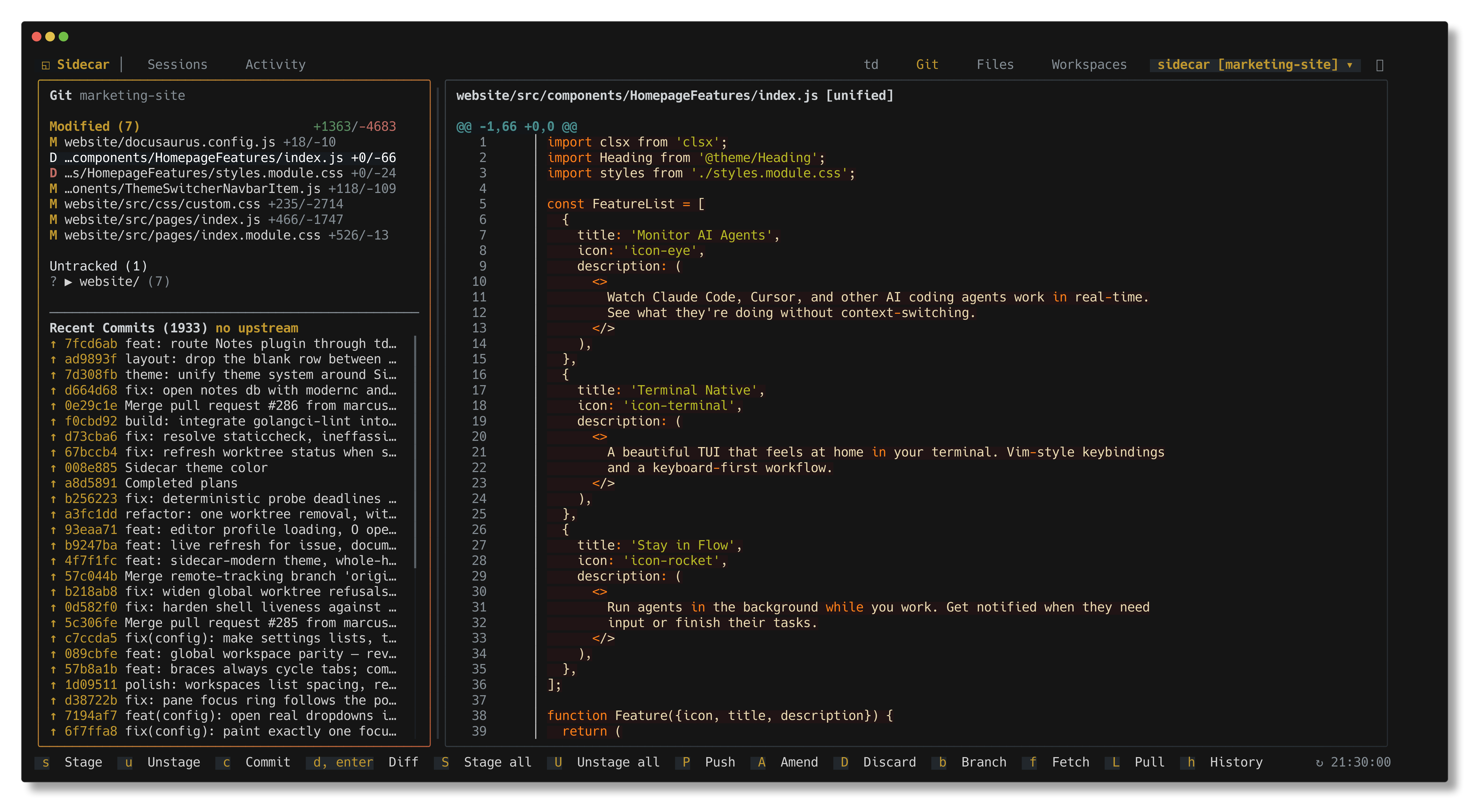
Watch your agents work in real time: inspect git diffs, manage parallel workspaces, track durable tasks, take project notes, and coordinate multi-pane workflows—all from a single terminal interface.
The Problem
AI coding agents are powerful but opaque. When tools like Claude Code, Codex, or Cursor make changes across your codebase, you are often waiting on summaries or constantly context-switching between terminal windows, editor tabs, and git logs. Sidecar gives you continuous, interactive visibility into agent activity without interrupting your flow.
Key capabilities:
- Real-Time Git Inspection: Stage files, review syntax-highlighted diffs, and author commits while your agent works.
- Multi-Pane Windowing: Tile interactive shells, code files, diffs, task cards, and notes side-by-side in custom 2×2 grid layouts with visual repositioning (
M/⊞). - Fleet & Session Management: Sessions (
8) and Activity (9/K) aggregate all local and remote workspaces into one live dashboard. - Durable Shell Persistence: Terminal sessions survive tmux crashes and reboots; resume exact agent conversations with
sidecar session restore. - Parallel Development: Spin up isolated git worktrees with dedicated agent sessions in seconds (
n). - Personal & Agent Task Systems: Embedded Tasks (
0) for personal GTD planning and TD for agent memory and verification reviews. - Persistent Project Scratchpad: Take notes with theme-matched Markdown and clickable code links in Notes (
4). - Instant Project & Worktree Switching: Jump between repositories with
@and switch worktrees withW, preserving cursor positions and pane layouts. - Notification System: Bordered corner toasts and a slide-over Notification Centre (
N/alt+n) with actionable jumps into files, tasks, and diffs.
Quick Install
curl -fsSL https://raw.githubusercontent.com/marcus/sidecar/main/scripts/setup.sh | bash
Requirements: macOS, Linux, or WSL.
Alternative install methods
Homebrew:
brew install marcus/tap/sidecar
Binary download: Grab a pre-built binary from GitHub Releases.
From source (requires Go 1.21+):
go install github.com/marcus/sidecar/cmd/sidecar@latest
Quick Start
Run from any project directory:
sidecar
Sidecar auto-detects your git repository, active agent sessions, and configured tasks. No initial configuration is required.
Recommended Workflow
Split your terminal horizontally: agent on the left, Sidecar on the right.
┌─────────────────────────────┬──────────────────────────────────────────┐
│                             │                                          │
│   Claude Code / Codex       │  [1 Workspaces] [2 Git] [3 Files] [4...] │
│                             │                                          │
│   $ claude                  │  • Staged (2)   │ + func Auth() error {  │
│   > fix the auth bug...     │  • Modified (4) │ +     return nil       │
│                             │                 │ + }                    │
│                             │  ─────────────────────────────────────── │
│                             │  td-8ec2cc: Fix token refresh expiry     │
└─────────────────────────────┴──────────────────────────────────────────┘
As the agent works:
- Watch changes appear instantly in Git Status (
2) with syntax-highlighted diffs. - Browse and edit code yourself in File Browser (
3) with inline editing and fuzzy search. - Record decisions and architecture plans in Notes (
4). - Track agent progress and submit verification reviews in TD Monitor.
- Manage your daily backlog and triage next actions in Tasks (
0). - Launch parallel agents across isolated git worktrees in Workspaces (
1).
You can run two Sidecar instances side-by-side or split inside tmux to create a comprehensive multi-monitor dashboard view.
Core Plugins & Surfaces
Sidecar is organized into modular project-level tabs and global fleet surfaces:
1. Workspaces (1)
Run parallel AI agents across git worktrees with live output streaming.
Create isolated branches, launch agents with custom prompts, and watch their progress in a list or Kanban board. Features 2×2 grid tiling, visual pane repositioning (M / ⊞), and integrated PR workflows.
Full Workspaces Documentation →
2. Git Status (2)
A terminal-native git interface with live diff preview and commit management.
Review changes with language-aware syntax highlighting in unified or side-by-side views. Stage files or folders with a single key (s), discard changes safely (D), author commits (c), and push to remotes (P).
Full Git Plugin Documentation →
3. File Browser (3)
Navigate, preview, search, and edit project files.
Collapsible tree view with live previews, fuzzy file finding (ctrl+p), project-wide ripgrep search (f), rendered Markdown (m), image previews, drag-and-drop file organization, and inline text editing (e).
Full File Browser Documentation →
4. Notes (4)
Persistent project scratchpad and notes organizer.
Jot down implementation plans and debugging notes with theme-matched Markdown rendering, interactive content links (path:line, td-*, commits), native mouse selection, and pane-local $EDITOR forwarding.
Full Notes Plugin Documentation →
5. Tasks (0 / project Tasks)
Personal task management and GTD planning.
Track personal todos, feature backlogs, and multi-project milestones. Includes GTD Next-action triage (N), Outline with toggleable closed work (C), Agenda, and real-time cross-project synchronization.
6. TD Monitor
Durable external memory and verification for AI coding agents.
Integration with TD for structured context tracking across agent context window resets, progress logs, dependency tracking, and verification review workflows.
7. Conversations (Opt-In)
Unified session history across Claude Code, Codex, Cursor, OpenCode, and more.
Search past agent conversations, inspect turn-by-turn message expansions, and resume previous sessions with a single key.
Full Conversations Documentation →
8. Sessions (8) & Activity (9 / K)
Fleet mission control across local repositories and remote hosts.
Sessions (8) aggregates all your local and remote workspaces with zero-latency snapshot previews and instant tmux attach. Activity (9 / K) provides a cross-project Kanban board tracking live agent lifecycle states (Working, Blocked, Done, Idle, Paused).
Full Sessions & Activity Documentation →
Global Navigation & Keybindings
These shortcuts are available across all surfaces:
| Key | Action |
|---|---|
[ / ] | Step left / right through the entire header row |
1 - 7 | Jump directly to a project tab (Workspaces, Git, Files, Notes, Conversations, td, Tasks) |
8 / 9 / 0 | Jump directly to a global surface (Sessions, Activity, Tasks) |
n | Open universal Pane Switcher from any focused pane |
M | Open Visual Reposition Modal to rearrange pane layouts |
N / alt+n | Open Notification Centre |
@ | Open Project Switcher |
W | Open Worktree Switcher |
# | Open Theme Picker (built-in and community themes) |
, | Open in-app Configuration & Setup |
! | Open Diagnostics & Updates modal |
K | Toggle cross-project Agent Overview board |
r | Refresh current surface |
? | Toggle shortcut help overlay |
q, ctrl+c | Quit Sidecar (or close active modal/overlay) |
Multi-Pane Windowing & Layouts
Sidecar allows you to tile multiple panes—interactive shells, code documents, diffs, tasks, notes, and external resources—in flexible 2×2 grid layouts:
- Pane Switcher (
n): Reachable from any pane to open files, diffs, tasks, or resources. - Visual Repositioning (
M/⊞): Rearrange panes using vim direction keys (h/j/k/l), zoom (z), and commit atomically (enter). - CLI Control: Automate layouts programmatically with
sidecar layout get,sidecar layout apply, andsidecar layout move.
Full Panes & Layouts Documentation →
Session Durability & Recovery
Terminal shells and agent sessions in Sidecar survive tmux server crashes, restarts, and reboots. Shell definitions are preserved in shells.json (v3).
- Inspect Restore Plan:
sidecar session status - Restore Shells & Agents:
sidecar session restore --agents --yes - Set Per-Shell Policy:
sidecar session policy <target> --inherit|--shell|--resume|--never
Full Session Durability Documentation →
Remote Hosts
Sidecar can observe and drive sessions on another machine over SSH. Remote shells, worktrees, and agents appear in the Sessions browser with live previews, interactive attach, and full mutation support (create, rename, delete).
Full Remote Hosts Documentation →
Themes
Sidecar includes 21 handcrafted color palettes with high-contrast semantic styling across all tabs, diffs, Kanban lanes, and rendered Markdown.
- Press
#to open the theme switcher. - Press
tabto browse community themes. - Press
enterto apply the selected theme instantly.
Configuration & Setup
Press , (or click the header gear) to open in-app Configuration. It opens on Sidecar Setup, which analyzes your environment, color capabilities, project paths, and agent integrations with automated repairs.
From a terminal, run sidecar setup to start Sidecar directly on that page.
Customize behavior in ~/.config/sidecar/config.json:
{
  "plugins": {
    "git-status": { "enabled": true, "refreshInterval": "1s" },
    "td-monitor": { "enabled": true, "refreshInterval": "2s" },
    "file-browser": { "enabled": true },
    "notes": { "enabled": true },
    "tasks": { "enabled": true },
    "workspaces": { "enabled": true }
  },
  "features": {
    "flags": {
      "conversations_plugin": false,
      "sidecar_remote_hosts": false
    }
  },
  "ui": {
    "showClock": true,
    "nerdFontsEnabled": false,
    "terminalTitle": "{project}{worktree}"
  }
}
Updates
Sidecar automatically checks for updates on startup. Press ! for diagnostics, then press u to review and confirm updates across Sidecar, td, and Tasks.
Update methods:
- Setup script:
curl -fsSL https://raw.githubusercontent.com/marcus/sidecar/main/scripts/setup.sh | bash - Homebrew:
brew upgrade marcus/tap/sidecar - Binary: Download latest from GitHub Releases
What's Next?
- Panes & Layouts — Multi-pane windowing, switcher, and layout CLI
- Session Durability — Shell recovery, policies, and agent resume
- Sessions & Activity — Cross-project fleet management
- Notifications — In-app toasts, Notification Centre, and notify CLI
- Agent Coordination — Multi-agent scripting and automation
- Git Plugin — Reference for staging, diffing, and commits
- Workspaces Plugin — Worktrees and parallel agent development
- CLI Reference — Complete command-line manual